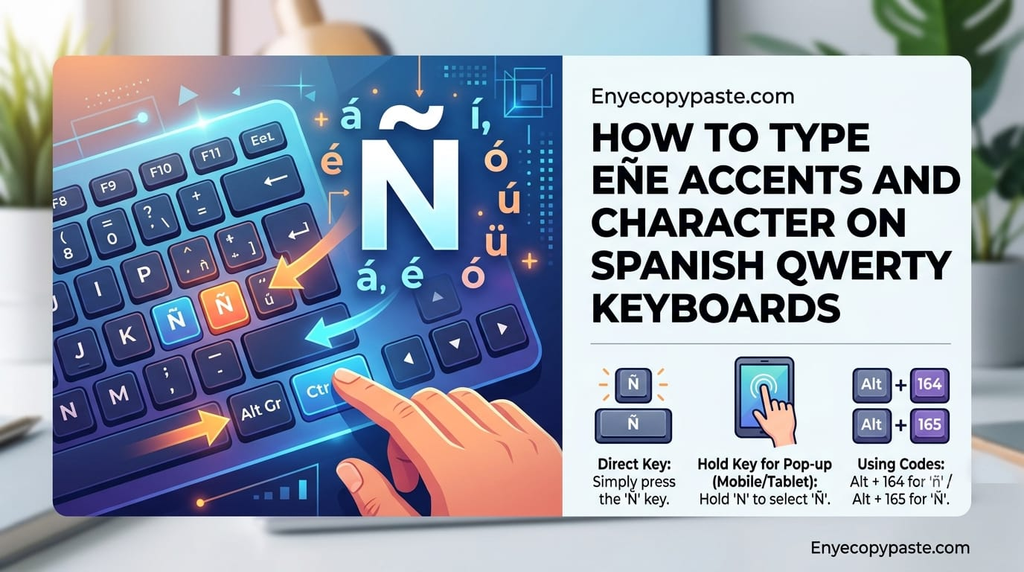
Working in a globalized digital environment often requires writing across multiple languages. Whether you are drafting localized marketing emails, translating technical documentation, or corresponding with international clients, inserting non-English diacritics onto a standard English QWERTY keyboard can quickly derail your typing momentum. Foreign language glyphs—such as Spanish tildes (ñ), acute accents (á, é, í, ó, ú), French cedillas (ç), German umlauts (ä, ö, ü), and inverted punctuation marks (¿, ¡)—are absent from standard physical keycaps. Rather than constantly toggling operating system input languages or memorizing long numerical key codes, using a browser-based Spanish accent copy tool offers an instant, zero-friction solution for inserting precise special characters into any active text editor or web form.
Mastering the various techniques available for generating foreign diacritics helps streamline cross-lingual communication and ensures your text maintains professional standards across all digital platforms.
The Technical Hurdle of Standard Physical Keyboards
Most keyboards sold across English-speaking markets are manufactured around the ANSI or standard US-QWERTY layout. These hardware configurations prioritize 26 standard English letters, basic digits, and standard punctuation. Consequently, non-English accents and specialized symbols require alternative input methods.
When typing multilingual text on standard hardware, writers typically encounter three major friction points:
· Layout Disorientation: Changing OS keyboard settings to a localized layout (e.g., Spanish International or French layout) physically remaps key positions. Common symbols like colons, brackets, and quotes shift to different keys, interrupting established touch-typing memory.
· Laptop Hardware Limits: Traditional Windows shortcut systems rely heavily on holding the Alt key while entering four-digit numeric codes on a physical numeric keypad. Modern compact laptops routinely omit dedicated numeric keypads, rendering Alt-code shortcuts unusable without external hardware.
· Formatting Inconsistencies: Copying raw foreign text from legacy word processors into modern web forms can introduce unexpected string rendering errors if the target application does not process Unicode text dynamically.
Methods for Inputting Foreign Accents and Symbols
Depending on your hardware environment, operating system, and current workflow speed, several reliable methods exist for inserting foreign language accents and characters accurately.
1. Direct Web-Based Copy-Pasting (Fastest for Daily Content Creation)
For copywriters, bloggers, social media managers, and digital content editors, using single-purpose web tools is the most efficient workflow. Modern web applications and form fields process UTF-8 string encoding natively. Platforms such as Enye Copy Paste provide clean, instant access to uppercase and lowercase accents, tildes, and inverted punctuation marks without requiring browser extensions or software downloads.
2. Native OS Keyboard Shortcuts
Both macOS and Windows provide built-in software shortcuts that allow users to generate accent marks without changing their physical keyboard mapping:
· macOS Accent Hold Menu: On modern macOS systems, holding down a standard letter key (such as a, e, i, o, u, or c) displays an inline popup menu showing all available accented variations. Pressing the corresponding number key selects the desired character instantly. Alternatively, key combos like Option + e followed by the vowel produce acute accents (e.g., é).
· Windows International Keyboard Layout: Enabling the US-International layout in Windows settings transforms standard punctuation keys into “dead keys.” For example, pressing the single quote key followed by a automatically produces á, while typing ~ followed by n yields ñ.
3. HTML Entity Codes for Developers
For front-end web developers and UI designers coding localized content directly into raw template files, using direct keyboard characters can occasionally lead to encoding errors if document headers fall back to legacy ASCII encoding. HTML entity codes guarantee proper rendering:
· Accented e (é): é or é
· Spanish Ñ: Ñ or Ñ
· German Umlaut ü: ü or ü
· French Cedilla ç: ç or ç
· Inverted Question Mark (¿): ¿ or ¿
Best Practices for Unicode Text Handling and Encoding
Ensuring that foreign symbols render properly across databases, APIs, and client-side browsers requires maintaining UTF-8 standards across your software architecture.
Include Proper Meta Charset Declarations
Every web page should explicitly declare UTF-8 encoding within the HTML <head> element to prevent browser character parsing errors:
<meta charset=”UTF-8″>
Configure Database Character Sets
When capturing localized user input in database storage engines (such as MySQL or MariaDB), verify that table collations are explicitly set to utf8mb4 with utf8mb4_unicode_ci. This setting prevents foreign accents, tildes, and special symbols from stripping or converting into broken text strings during data writing operations.
Conclusion
Accurately inserting foreign language accents and symbols is essential for maintaining clear communication, proper grammar, and polished digital branding. Whether you utilize native OS shortcut menus, hardcode HTML entity references into web templates, or leverage dedicated web utility platforms for quick symbol copy-pasting, standardizing your input workflow ensures seamless text display across all digital environments.